Technical SEO Basics: Beginner's Guide
Learn technical SEO fundamentals in plain English. Audit your site, fix common problems without a developer, and track technical health in Google Search Console.

Technical SEO Basics: What You Need to Know (Beginner's Guide)
Your content is brilliant. Your keywords are perfect. But if Google can't crawl and index your site, none of it matters.
Technical SEO is the foundation. Without it, exceptional content won't rank. Sounds intimidating—especially for non-developers—but most technical issues are surprisingly fixable. Google Search Console shows you exactly what's wrong and how to fix it.
This guide covers technical SEO fundamentals (in simple terms), essential technical elements, how to audit your site, how to fix common problems without a developer, and how to track technical health in GSC.
By the end, you'll understand fundamentals and know how to use Search Console to identify and fix common issues. Everything in plain English with visual examples.
What Is Technical SEO?
The Simple Definition
Technical SEO means making sure search engines can find, crawl, index, and understand your website.
It's the foundation on-page and off-page SEO build upon. Less about content, more about infrastructure. If you're new to SEO, start with understanding how search works. Building a house requires a solid foundation before decorating the interior.
Technical vs On-Page vs Off-Page SEO
Understanding where technical SEO fits in the bigger picture helps clarify what you need to focus on.
Technical SEO (Foundation)
- Focus: Site infrastructure, crawlability, indexability
- Examples: Site speed, mobile-friendliness, XML sitemaps, HTTPS
- Who handles it: Developers, SEO specialists, webmasters
- Impact: Prevents problems (enabling factor)
On-Page SEO (Building)
- Focus: Optimizing individual page content and elements
- Examples: Title tags, headers, content, keywords. Learn more with our On-Page SEO Checklist.
- Who handles it: Content creators, SEO writers
- Impact: Improves rankings (active factor)
Off-Page SEO (Reputation)
- Focus: Building authority through external signals
- Examples: Backlinks, brand mentions, reviews
- Who handles it: PR, outreach specialists, marketers
- Impact: Builds authority (trust factor)
The Analogy:
Technical SEO is making sure your store has a working door and lights. On-page SEO is organizing products attractively inside. Off-page SEO is getting people to recommend your store.
Without a working door, nobody gets inside no matter how nice it looks.
Why Technical SEO Matters
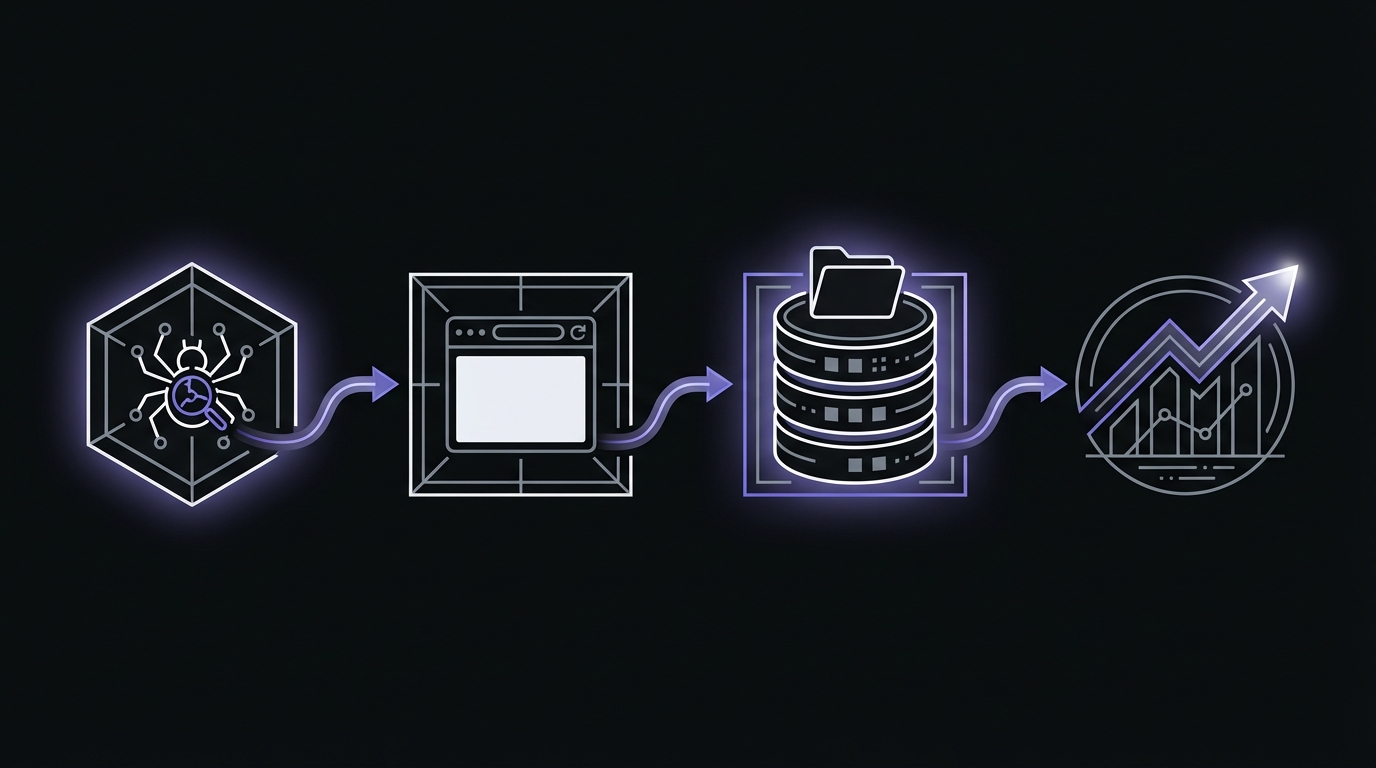
Crawlability
Google's bots must be able to access your pages. Technical issues can block crawling entirely. The result? Pages not crawled means they can't be indexed, which means they won't rank.
Indexability
Google must be able to add your pages to its index. Technical barriers can prevent indexing completely. Not in the index means invisible in search results.
User Experience
Slow sites, broken mobile experiences, and insecure connections all hurt rankings. Google prioritizes sites that provide good user experiences. Core Web Vitals are a confirmed ranking factor, directly tying technical performance to search visibility.
Competitive Advantage
Many websites have technical issues lurking beneath the surface. This creates opportunity. Fixing your technical SEO levels the playing field. When you combine good content with a solid technical foundation, you get rankings.
Real Example:
A client had 10,000 product pages but only 800 were indexed. robots.txt was accidentally blocking product pages. We fixed robots.txt, and within 2 weeks, 9,200 pages were indexed. Within 2 months, organic traffic increased 350%. Same content, same site—we just removed the technical barrier.
How Common Are Technical SEO Issues?
Research from Semrush analyzing over 50,000 domains reveals how widespread technical problems are:
| Issue | % of Sites Affected |
|---|---|
| Pages failing Core Web Vitals | 96% |
| Missing meta descriptions | 70% |
| Orphan pages (no internal links) | 69% |
| Broken internal/external links | 52% |
| Internal duplicate content | 41% |
| HTTP/HTTPS dual access | 27% |
These numbers show that most websites have fixable technical issues. Addressing them puts you ahead of the majority of competitors.
Essential Technical SEO Elements
These are the non-negotiables. Get these right before worrying about advanced tactics.
1. Site Architecture and Structure
What It Is:
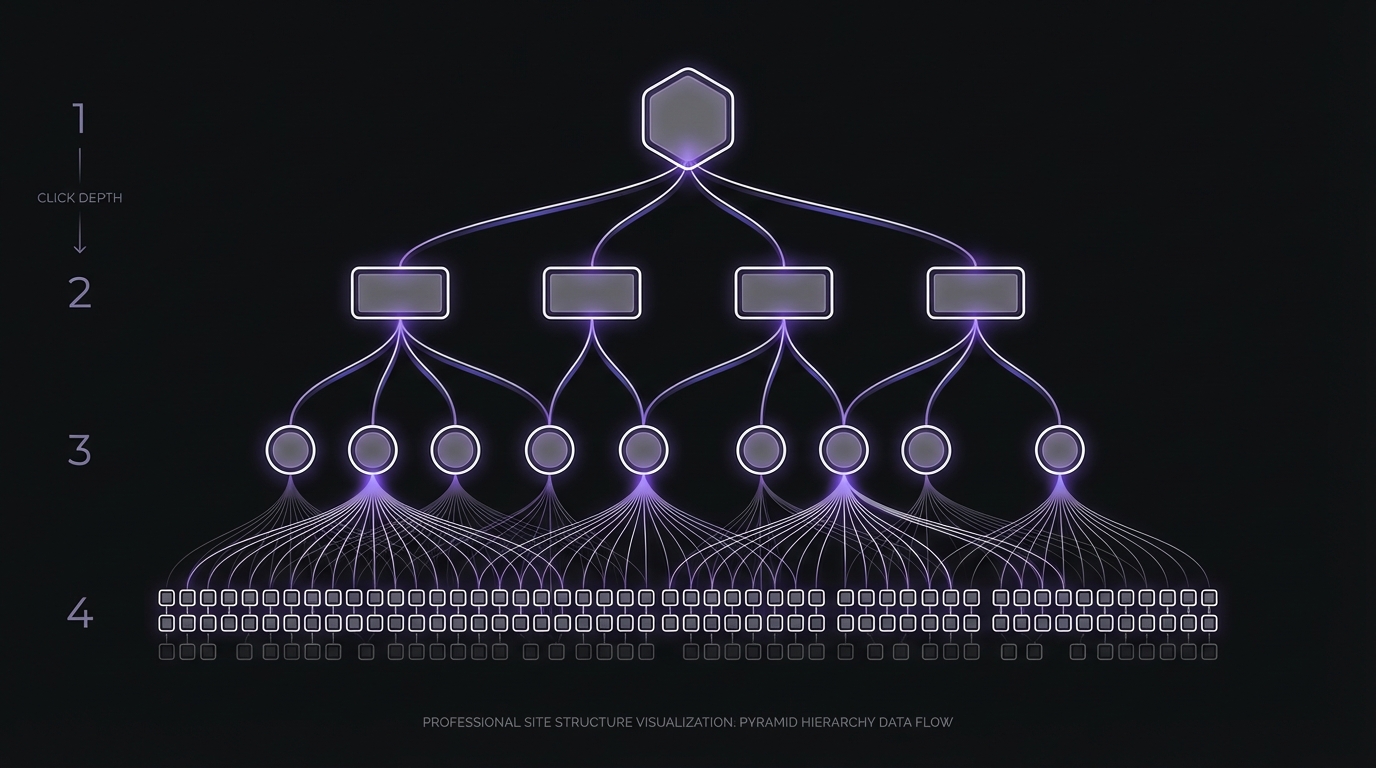
Site architecture refers to how your website is organized and how pages connect to each other. This includes your URL hierarchy, navigation structure, and internal linking patterns.
Why It Matters:
Good architecture helps Google understand your site organization. It distributes authority throughout your site, affects crawl efficiency and indexing, and directly impacts user experience and content findability.
Best Practices:
✅ Logical hierarchy (pyramid structure)
Homepage (most important)
  ↓
Category Pages (main topics)
  ↓
Subcategory Pages (specific topics)
  ↓
Individual Pages/Posts (specific content)
✅ Flat architecture (important pages within 3 clicks of homepage)
Every page should be reachable in 3 clicks or fewer from your homepage. More clicks means less authority and slower discovery by search engines.
Click Depth Benchmarks:
- 2-3 clicks: Optimal—pages get crawled frequently and pass authority well
- 4+ clicks: Problematic—pages may be crawled infrequently or missed entirely
- 3-10 internal links: Target range for each high-priority page
✅ Clean URL structure (reflects hierarchy)
- Good:
site.com/category/subcategory/page - Bad:
site.com/p=123456?ref=abc
URLs should be descriptive and readable, making it clear where users (and Google) are within your site structure.
✅ Strong internal linking (connects related content)
Every page should have multiple internal links pointing to it. Every page should also link out to related content. This helps with crawling and passes authority throughout your site.
GSC Connection:
Check Crawl Stats in Google Search Console to monitor:
- Crawl requests per day (is Google actively crawling your site?)
- Response time (is your server responding fast enough?)
- Crawl by response code (are there errors preventing access?)
Low crawl rate on a large site typically indicates structure or speed issues that need attention.
2. XML Sitemaps
What It Is:
An XML sitemap is a file listing all important pages on your site. It helps search engines discover and prioritize pages. Most sites have their sitemap located at yoursite.com/sitemap.xml.
Why It Matters:
Sitemaps help Google discover pages faster, especially on new or large sites. They indicate page priority and update frequency to search engines. While not required, they're strongly recommended for virtually every website.
Best Practices:
✅ Include all important pages
Include public pages you want indexed. Exclude admin pages, duplicate content, and low-value pages.
Sitemap Technical Limits:
- Maximum 50,000 URLs per sitemap
- Maximum 50MB uncompressed file size
- Use a sitemap index file if you exceed these limits
✅ Keep it updated (automatically if possible)
Your sitemap should automatically add new pages, remove deleted pages, and update modification dates. Most CMS platforms have plugins that handle this automatically.
✅ Submit to Search Console
- Go to GSC → Sitemaps
- Enter your sitemap URL (usually
/sitemap.xml) - Submit
- Monitor for errors regularly
✅ Check for errors regularly
GSC shows your sitemap status including errors like 404s, blocked pages, and redirect chains. Fix these errors promptly to ensure proper indexing.
Common Mistakes:
- Including noindex pages (wastes crawl budget)
- Including 404 or redirected URLs
- Not updating sitemap when content changes
- Never submitting to Google Search Console
GSC Connection:
The GSC Sitemaps report shows which sitemaps are discovered, how many URLs were submitted versus indexed, last read date (confirming the sitemap is being checked), and any errors in the sitemap.
If your 'Discovered' count is much higher than 'Indexed', investigate why pages aren't making it into Google's index.
3. Robots.txt
What It Is:
Robots.txt is a text file that tells search engines what not to crawl on your site. It's located at yoursite.com/robots.txt and controls crawler access while also indicating sitemap location.
Why It Matters:
Robots.txt saves crawl budget by preventing crawlers from wasting time on unimportant pages. It prevents duplicate content from being indexed. However, it can also accidentally block important pages—one of the most common technical SEO mistakes.
Best Practices:
✅ Basic robots.txt structure:
User-agent: *
Disallow: /admin/
Disallow: /cart/
Disallow: /search/
Allow: /

Sitemap: https://yoursite.com/sitemap.xml
✅ What to block:
Block admin areas and login pages, cart and checkout pages (e-commerce), search results pages, duplicate content versions, private sections, and PDF files (if you don't want them in search results).
✅ What NOT to block:
Never block important public content, CSS and JavaScript files (Google needs these to render pages properly), images (unless you don't want them in image search), or your entire site (unless you have a very good reason).
✅ Test before deploying
Use the GSC robots.txt Tester to verify that important pages are allowed and blocked pages are actually blocked.
Common Mistakes:
Disallow: /blocks everything—your entire site disappears from search- Blocking CSS/JavaScript prevents Google from rendering pages properly
- Using robots.txt to hide sensitive content (it's not secure—use authentication instead)
- Accidentally blocking pages you want indexed (happens more often than you'd think)
GSC Connection:
GSC → Settings → robots.txt Tester lets you view your current robots.txt file, test if specific URLs are blocked, see how Googlebot sees your robots.txt, and identify if you're accidentally blocking important content.
Crawl Budget Considerations:
Crawl budget—how many pages Google crawls per visit—matters primarily for sites with 5,000+ pages. For smaller sites, focus on eliminating blockers rather than optimizing crawl budget.
4. HTTPS (Secure Connection)
What It Is:
HTTPS is an SSL certificate that encrypts data between users and your server. It displays a padlock in the browser address bar and means URLs start with https:// instead of http://.
Why It Matters:
HTTPS has been a confirmed ranking factor since 2014. It's a user trust signal—browsers now warn users when sites aren't secure. It's required for modern web features and provides essential security and privacy protection.
Best Practices:
✅ Get SSL certificate (often free)
Many hosting providers include free SSL certificates through Let's Encrypt. You can also purchase certificates from certificate authorities or use Cloudflare's free SSL offering.
✅ Implement site-wide HTTPS
Secure all pages, not just checkout or login pages. Set up 301 redirects from HTTP to HTTPS and update all internal links to use HTTPS.
✅ Fix mixed content warnings
All resources—images, CSS, JavaScript—must use HTTPS. Update any hard-coded HTTP links to HTTPS. Consider using relative URLs (/image.jpg) instead of absolute URLs to avoid this issue.
✅ Update configurations
Submit your HTTPS property to Search Console, update canonical tags to HTTPS versions, update your sitemap to HTTPS URLs, and update hreflang tags if you have international versions.
Common Mistakes:
- Leaving both HTTP and HTTPS versions accessible (creates duplicate content)
- Mixed content warnings (some resources still loading over HTTP)
- Internal links still pointing to HTTP versions
- Not redirecting HTTP to HTTPS
GSC Connection:
Add both HTTP and HTTPS properties to GSC. Verify both versions and see which one Google prefers (usually HTTPS). Check for duplicate content issues and monitor migration progress.
Set up your HTTPS property as your primary property once migration is complete.
5. Mobile-Friendliness
What It Is:
Mobile-friendliness means your website is designed to work well on mobile devices. Responsive design automatically adapts to different screen sizes, making content touch-friendly, readable, and fast on mobile.
Why It Matters:
Google uses mobile-first indexing, meaning it uses the mobile version of your site for ranking. Over 60% of searches happen on mobile devices. Mobile-friendliness is a ranking factor for mobile search, and user experience is essential—high mobile bounce rates hurt rankings.
Best Practices:
✅ Responsive design (adapts to any screen size)
Use the same HTML with different CSS for different screens. Most modern themes are responsive by default. You don't need a separate mobile site.
✅ Tap targets (large enough for fingers)
Make buttons and links at least 48x48 pixels with adequate spacing between tap elements. Avoid tiny links that are difficult to tap accurately.
✅ Readable text (no zooming required)
Use font sizes of 16px or larger for body text. Ensure good contrast with dark text on light backgrounds and adequate line spacing for readability.
✅ Mobile-friendly navigation
Use hamburger menus for large navigation. Provide easy access to important pages. Avoid Flash and pop-ups that block content.
✅ Fast on mobile (especially on slow connections)
Compress images aggressively, minimize resources, and optimize for 3G/4G speeds since not all users have 5G access.
GSC Connection:
GSC → Experience → Mobile Usability report shows pages with mobile issues, specific error types (text too small, tap targets too close, etc.), which pages need fixes, and validation status after you make fixes.
Fix these errors to improve mobile rankings.
Also use Google's Mobile-Friendly Test to test individual URLs, see how Google renders the mobile version, and identify specific issues.
6. Page Speed and Core Web Vitals
What It Is:
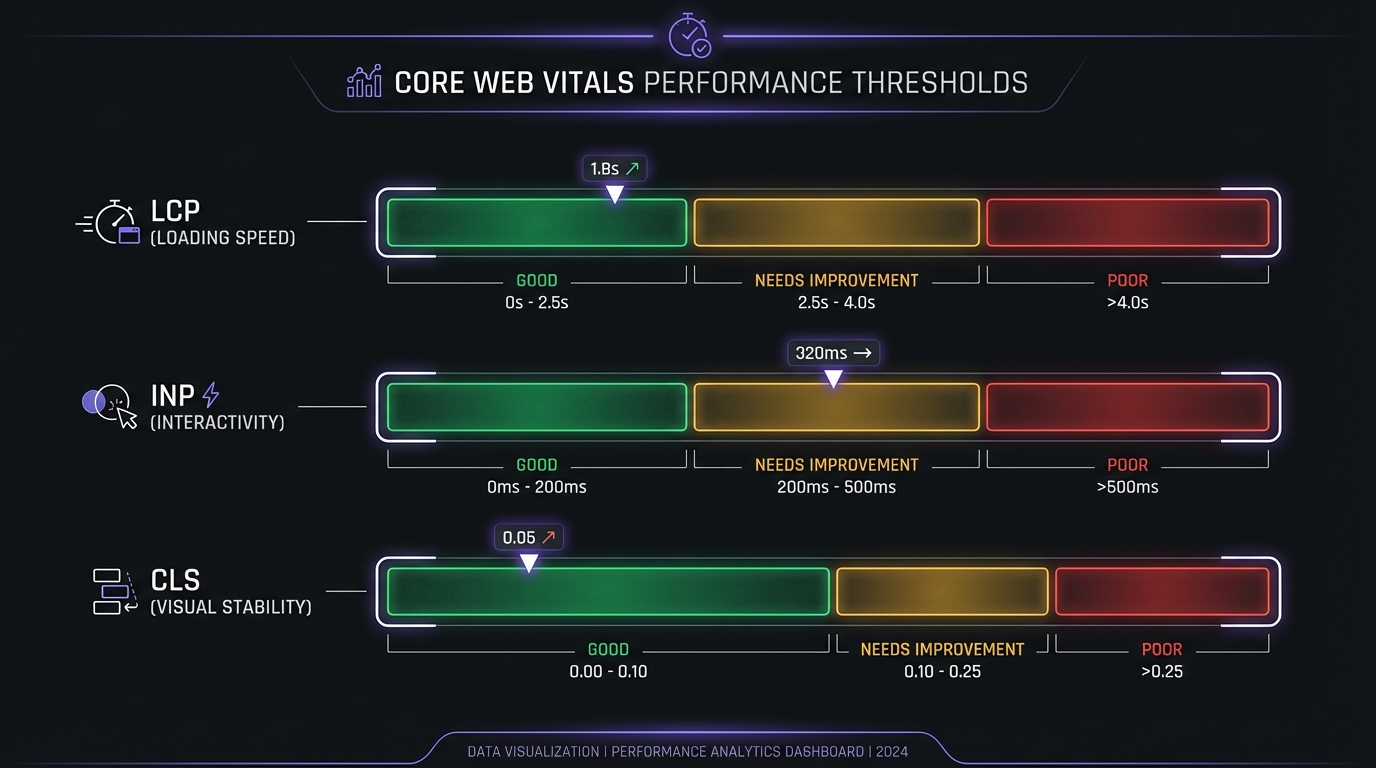
Page speed measures how fast pages load and become interactive. Core Web Vitals are three key user experience metrics measured using real user data (field data).
Why It Matters:
Page speed is a confirmed ranking factor following Google's Page Experience update. It has a huge impact on user experience and conversions. Mobile performance is especially important, and fast sites have a competitive advantage.
Core Web Vitals Metrics:
| Metric | Good | Needs Improvement | Poor |
|---|---|---|---|
| LCP (Loading) | ≤2.5s | 2.5s–4s | >4s |
| INP (Interactivity) | ≤200ms | 200ms–500ms | >500ms |
| CLS (Visual Stability) | ≤0.1 | 0.1–0.25 | >0.25 |
Largest Contentful Paint (LCP) - Loading
- What: How long until the main content loads
- Affects: User perception of load time
- Fix: Optimize images, improve server response, preload key resources
Interaction to Next Paint (INP) - Interactivity
- What: How responsive the page is to user interactions
- Affects: User frustration with unresponsive pages
- Fix: Minimize JavaScript, defer non-critical JS, optimize event handlers
Cumulative Layout Shift (CLS) - Visual Stability
- What: Unexpected layout shifts while loading
- Affects: Accidental clicks and jarring visual experience
- Fix: Set image and video dimensions, avoid dynamically injected content
Key Benchmark: Google recommends server response time under 200ms. Average page load on 3G networks is 19 seconds—50% of users abandon sites that take longer than 3 seconds.
Quick Wins for Speed:
-
Compress images (biggest impact for most sites)
- Use TinyPNG, ImageOptim, or Squoosh
- Convert to WebP format
- Implement lazy loading for below-fold images
-
Enable caching (browser and server-side)
- Cache static resources
- Set appropriate cache headers
-
Minimize code (remove unused CSS/JS)
- Minify CSS and JavaScript files
- Remove unused code
- Defer non-critical JavaScript
-
Use a CDN (content delivery network)
- Serve assets from geographically closer servers
- Cloudflare's free tier works well for most sites
-
Optimize hosting (fast server response)
- Quality hosting matters significantly
- Shared hosting is often slow
- Consider managed WordPress hosting or VPS
GSC Connection:
GSC → Experience → Page Experience report shows Core Web Vitals performance for both mobile and desktop, URLs categorized as Good, Needs Improvement, or Poor, and which specific metrics are failing for each URL.
Priority: Fix 'Poor' URLs first, especially high-traffic pages that impact the most users.
Also use PageSpeed Insights for detailed recommendations per URL, both field data (real users) and lab data (simulated tests), and specific issues with fixes.
7. Canonicalization and Duplicate Content
What It Is:
Canonical tags tell Google which version of a page is the primary version. They prevent duplicate content issues and consolidate ranking signals to a single URL.
Why It Matters:
Duplicate content dilutes authority by splitting ranking signals across multiple URLs. It can cause indexing problems, leads Google to potentially choose the wrong version to rank, and wastes crawl budget.
Common Duplicate Content Causes:
- HTTP vs HTTPS versions (both accessible)
- www vs non-www versions (both accessible)
- Trailing slash vs no trailing slash (
/pagevs/page/) - URL parameters (
?sort=price,?ref=email) - Printer-friendly versions
- Paginated content
Best Practices:
✅ Use canonical tags (on every page)
<link rel="canonical" href="https://yoursite.com/preferred-url/" />
This points to the "main" version of the page. Use self-referencing canonicals on the main version and cross-domain canonicals if syndicating content to other sites.
✅ Choose canonical domain (www or non-www)
Pick one version and stick with it consistently. Redirect the other version using 301 redirects. While setting a preferred domain in GSC is deprecated, it's still good practice.
✅ Redirect duplicates (301 permanent redirects)
Set up redirects for HTTP → HTTPS, www → non-www (or vice versa), old URLs → new URLs, and multiple versions → one canonical version.
✅ Use URL parameters tool in GSC
Tell Google how to handle URL parameters and specify which parameters don't change content. This reduces duplicate indexing.
Common Mistakes:
- No canonical tags (Google chooses for you, often incorrectly)
- Canonical pointing to a 404 page or redirect
- Multiple canonical tags on the same page (invalid HTML)
- Canonical pointing to different content (misleading Google)
GSC Connection:
GSC → Settings → Duplicate content shows pages Google thinks are duplicates, canonical conflicts, and differences between user-declared versus Google-selected canonical URLs.
Also check Index Coverage for 'Duplicate without user-selected canonical' and 'Duplicate, Google chose different canonical than user' warnings.
Fix these issues to consolidate authority to your preferred URLs.
8. Structured Data (Schema Markup)
What It Is:
Structured data is code that helps Google understand page content more clearly. It enables rich results in search (like star ratings, FAQs, breadcrumbs, etc.). While not required, it provides a competitive advantage.
Why It Matters:
Rich results increase click-through rates—20-30% boosts are common. Structured data helps Google understand context better, and voice search and AI systems rely heavily on structured data. It gives you a competitive edge in search results appearance.
Common Schema Types for Beginners:
✅ Article/BlogPosting (for content pages)
{
  "@context": "https://schema.org",
  "@type": "Article",
  "headline": "Technical SEO Basics",
  "author": {"@type": "Person", "name": "Author Name"},
  "datePublished": "2026-01-20",
  "image": "https://example.com/image.jpg"
}
✅ Breadcrumb (for navigation)
Shows site hierarchy in search results and helps users understand page location within your site structure.
✅ FAQ (for FAQ pages/sections)
Questions can appear directly in search results. Don't abuse this—only use for real, legitimate FAQs.
✅ HowTo (for step-by-step guides)
Steps can appear in search results, making this perfect for tutorials and process guides.
✅ Organization/LocalBusiness (for business info)
Includes name, logo, and contact info. For local businesses, also add address, hours, and geographic information.
Implementation:
✅ Use JSON-LD format (Google's preference)
JSON-LD goes in the <head> or <body> section and is easier to maintain than microdata alternatives.
✅ Validate before deploying
Use Google's Rich Results Test and Schema.org validator to fix errors before publishing to production.
✅ Don't mark up invisible content
Only mark up what's visible to users on the page. Marking up invisible content is considered spam and can result in manual penalties.
GSC Connection:
GSC → Enhancements shows Article, FAQ, HowTo, Product, Recipe, and other schema types. It displays valid items, errors, and warnings, shows rich result eligibility, and provides error details with affected URLs.
Fix errors to enable rich results and improve your search appearance.
9. Indexability and Crawlability
What It Is:
Indexability and crawlability mean ensuring pages can be crawled and indexed by search engines. This involves removing barriers to Google accessing your content and proper use of meta robots tags.
Key Directives:
✅ Meta robots tags (control indexing)
<meta name="robots" content="index, follow" />
index= allow in search resultsnoindex= keep out of search resultsfollow= follow links on this pagenofollow= don't follow links on this page
HTTP Status Code Quick Reference:
Understanding status codes helps diagnose crawling and indexing issues:
| Code | Meaning | SEO Impact |
|---|---|---|
| 200 | OK | Page accessible and indexable |
| 301 | Permanent redirect | Passes ~90-99% of link equity |
| 302 | Temporary redirect | May not pass full link equity |
| 404 | Not found | Page removed from index |
| 410 | Gone permanently | Faster removal than 404 |
| 500 | Server error | Temporary crawling issues |
| 503 | Service unavailable | Tells bots to retry later |
When to use noindex:
Use noindex for thank you pages (after conversions), admin and login pages, duplicate content you can't redirect, low-value pages (like thin tag or category archives), and private content.
✅ X-Robots-Tag (HTTP header version)
This is for non-HTML files like PDFs and images. You can noindex entire file types using server configuration.
✅ Check for indexing blockers:
Common blockers include robots.txt blocking important pages, noindex tags on important pages, password protection or login requirements, JavaScript-only content (Google can struggle with heavy JavaScript), and orphaned pages with no internal links pointing to them.
GSC Connection:
GSC → Index Coverage report categorizes pages into four groups. For a comprehensive guide to understanding this report, see How to Read the GSC Index Coverage Report:
- Valid: Indexed successfully
- Excluded: Not indexed (by design or due to an issue)
- Error: Couldn't index (fix these immediately)
- Warning: Indexed but with issues
Drill into 'Excluded' to see specific issues like excluded by noindex tag (is this intentional?), blocked by robots.txt (is this intentional?), duplicate content (consolidate with canonicals), and soft 404 errors (indicating thin content).
Fix unintentional exclusions to ensure your important content is discoverable in search.
How to Audit Your Technical SEO
Running a technical SEO audit might sound daunting, but breaking it into steps makes it manageable. Here's a systematic approach.
Step 1: Google Search Console Health Check (30 minutes)
✅ Index Coverage Report
- Go to GSC → Index → Coverage
- Check for errors (should be 0 or very low)
- Review warnings carefully
- Check the "Excluded" tab for unintentional exclusions
- Priority: Fix errors first, then address warnings
✅ Page Experience Report
- Go to GSC → Experience → Page Experience
- Check Core Web Vitals for both mobile and desktop
- Identify "Poor" URLs (fix these first)
- Check for Mobile Usability issues
✅ Sitemaps Report
- Verify your sitemap is submitted
- Compare "Discovered" vs "Indexed" counts (should be close)
- Look for errors that might prevent indexing
✅ Crawl Stats
- Check crawl requests per day (is Google actively crawling?)
- Check response time (should be under 1 second)
- Look for crawl errors or blocked resources
Step 2: Manual Checks (30-60 minutes)
✅ HTTPS Check
- Does your entire site use HTTPS?
- Do all pages redirect from HTTP to HTTPS?
- Any mixed content warnings in the browser console?
- Tools to use: Why No Padlock, SSL Labs
✅ Mobile-Friendly Check
- Use Google's Mobile-Friendly Test
- Test on actual mobile devices (iPhone, Android)
- Check navigation, tap targets, and text size
✅ Page Speed Check
- Use PageSpeed Insights for key pages
- Check Core Web Vitals scores
- Note the biggest issues (usually images or JavaScript)
✅ Robots.txt Check
- Visit
yoursite.com/robots.txt - Verify important pages aren't accidentally blocked
- Check that your sitemap is referenced
✅ XML Sitemap Check
- Visit
yoursite.com/sitemap.xml - Should exist and list your important pages
- Verify no 404s or redirects appear in the sitemap
✅ Canonical Check
- View page source on key pages
- Look for
<link rel="canonical"> - Verify it's pointing to the correct URL
Step 3: Tools for Deeper Analysis (Optional)
Free Tools:
- Screaming Frog (free up to 500 URLs—excellent for site crawls)
- Google Search Console (comprehensive and essential)
- PageSpeed Insights (detailed performance analysis)
- Mobile-Friendly Test (usability checking)
- Rich Results Test (schema validation)
Paid Tools (if budget allows):
- Semrush Site Audit (comprehensive automated audits)
- Ahrefs Site Audit (competitor analysis too)
- Sitebulb (specialized technical SEO crawler)
Step 4: Prioritize Fixes (15 minutes)
Critical (Fix Immediately):
- Pages that should be indexed but aren't
- HTTPS issues causing browser security warnings
- Mobile usability errors
- Critical Core Web Vitals failures (Poor rating on high-traffic pages)
High Priority (Fix This Month):
- Duplicate content issues diluting authority
- Missing canonical tags
- Robots.txt blocking important content
- Missing XML sitemap or sitemap errors
- Slow page speed on important pages
Medium Priority (Fix Next Month):
- Core Web Vitals "Needs Improvement" (not Poor)
- Minor mobile usability issues
- Missing structured data opportunities
- Crawl efficiency improvements
Low Priority (Nice to Have):
- Advanced schema markup beyond basics
- Further page speed optimization
- Crawl budget optimization (only matters for very large sites)
Fixing Common Technical SEO Issues
Let's walk through the most common technical SEO problems and their practical solutions.
Issue #1: Pages Not Indexed
Symptoms:
GSC Index Coverage shows errors or unexpected exclusions. Pages don't appear in Google search results. A site:yoursite.com search is missing pages you know exist.
Common Causes & Fixes:
1. Blocked by robots.txt
- Check your robots.txt file carefully
- Remove the disallow directive for important pages
- Test changes with GSC robots.txt Tester before deploying
2. Noindex tag on page
- View page source and search for "noindex"
- Remove the meta robots noindex tag
- Can take 1-2 weeks to get indexed after fixing
3. No internal links to page (orphaned)
- Add contextual internal links from related pages
- Add the page to your sitemap
- Submit URL for indexing via the URL Inspection tool in GSC
4. Duplicate content
- Use canonical tags to consolidate signals
- Or set up 301 redirects to the main version
5. Thin or low-quality content
- Expand content (aim for minimum 300+ words)
- Add unique value that doesn't exist elsewhere
- Or add noindex if the page truly isn't valuable
Issue #2: Slow Page Speed / Poor Core Web Vitals
Symptoms:
GSC Page Experience shows "Poor" URLs. PageSpeed Insights scores below 50. Users complain about slow site performance.
Common Causes & Fixes:
1. Large uncompressed images (most common issue)
- Compress all images using TinyPNG, ImageOptim, or Squoosh
- Convert images to WebP format
- Implement lazy loading for below-the-fold images
- Resize images to actual display size (don't load 5000px images for 500px display)
2. Slow server response (TTFB)
- Upgrade hosting (from shared hosting to VPS or managed WordPress)
- Enable server-side caching
- Use a CDN to serve content faster
3. Too much JavaScript
- Remove unused plugins and scripts
- Minify and combine JavaScript files
- Defer non-critical JavaScript
- Use async loading where appropriate
4. Render-blocking resources
- Defer non-critical CSS
- Inline critical CSS in the document head
- Load web fonts efficiently (font-display: swap)
Issue #3: Mobile Usability Errors
Symptoms:
GSC Mobile Usability report shows errors. Poor mobile user experience reported by users. High mobile bounce rate compared to desktop.
Common Causes & Fixes:
1. Text too small to read
- Increase font size to 16px minimum for body text
- Use responsive units (rem, em) instead of fixed pixels
2. Clickable elements too close together
- Increase button and link size (48x48px minimum)
- Add adequate padding between tap targets (at least 8px)
3. Content wider than screen
- Add viewport meta tag:
<meta name="viewport" content="width=device-width, initial-scale=1">
- Use responsive CSS (max-width: 100% on images and containers)
4. Uses incompatible plugins (Flash)
- Remove Flash entirely (no longer supported)
- Use HTML5 video instead for video content
Issue #4: Duplicate Content
Symptoms:
GSC Index Coverage shows duplicate warnings. Multiple URLs with the same content are ranking. Authority appears diluted across URLs.
Common Causes & Fixes:
1. www vs non-www both accessible
- Choose one as canonical (doesn't matter which)
- Set up 301 redirects from the other version
- Set preferred domain in hosting settings
2. HTTP and HTTPS both accessible
- Set up 301 redirects from all HTTP URLs to HTTPS
- Update canonical tags to HTTPS versions
- Update all internal links to HTTPS
3. URL parameters creating duplicates
- Use canonical tags pointing to clean URLs
- Configure URL Parameters in GSC to tell Google how to handle them
- Optionally use robots.txt to block parameter URLs
Issue #5: HTTPS Problems
Symptoms:
Browser security warnings displayed to users. Mixed content errors in browser console. HTTP pages still accessible alongside HTTPS.
Fixes:
- Install SSL certificate (free options from Let's Encrypt)
- Redirect HTTP → HTTPS (301 permanent redirects)
- Fix mixed content (update all HTTP resources to HTTPS)
- Update internal links (change to HTTPS versions)
- Submit HTTPS property to GSC (add as separate property and verify)
Technical SEO Checklist for New Sites
If you're launching a new site, use this checklist to ensure you start with a solid technical foundation. It's much easier to build correctly from the start than to fix issues later.
Launch Checklist: Before Going Live
☑️ 1. Install SSL certificate (HTTPS) ☑️ 2. Set canonical domain (www or non-www, redirect the other) ☑️ 3. Create XML sitemap ☑️ 4. Create robots.txt (don't block important content!) ☑️ 5. Add viewport meta tag (for mobile responsiveness) ☑️ 6. Optimize images (compress, use proper formats) ☑️ 7. Test mobile-friendliness (Google Mobile-Friendly Test) ☑️ 8. Test page speed (PageSpeed Insights) ☑️ 9. Set up Google Search Console ☑️ 10. Submit XML sitemap to GSC ☑️ 11. Add canonical tags to all pages ☑️ 12. Implement structured data (at minimum Article schema) ☑️ 13. Check for broken links ☑️ 14. Set up redirects (for any old URLs if this is a redesign) ☑️ 15. Test on multiple devices (mobile, tablet, desktop)
Post-Launch Monitoring (First 30 Days)
- Week 1: Check GSC for crawl errors and verify Googlebot is accessing the site
- Week 2: Verify pages are being indexed as expected
- Week 3: Check mobile usability for any issues that weren't caught in testing
- Week 4: Review Core Web Vitals with real user data
Conclusion
Technical SEO is the foundation for all SEO success. While on-page optimization and link building get more attention, they're built on this technical foundation. Focus on the nine core elements we covered: site architecture, XML sitemaps, robots.txt, HTTPS, mobile-friendliness, page speed, canonicalization, structured data, and indexability.
Google Search Console is your diagnostic dashboard for identifying technical issues. Most technical problems are fixable without developer help—especially the common ones affecting small to medium websites. Fix critical issues first, particularly pages that should be indexed but aren't and major mobile or speed problems on high-traffic pages.
Key Takeaways
Technical issues prevent even exceptional content from ranking. Without crawlability and indexability, your content is invisible to Google. Check Google Search Console weekly to catch issues early. Start with the Index Coverage and Page Experience reports—these identify the most impactful problems.
Mobile-friendliness and page speed are confirmed ranking factors, so prioritize these improvements. Technical SEO isn't a one-time task—audit your site quarterly to catch new issues as they emerge.
Your Technical SEO Action Plan
- Run a GSC audit (check Index Coverage and Page Experience reports)
- Fix any indexing errors (pages that should be indexed but aren't)
- Address mobile usability issues flagged in the report
- Improve Core Web Vitals (start with image compression—the biggest quick win)
- Set up a quarterly monitoring routine to catch new issues
Next Steps
Ready to dive deeper into specific technical areas?
- Deep dive into indexing: How to Read GSC Index Coverage Report (Post #17)
- Master Core Web Vitals: GSC Core Web Vitals Report Interpretation (Post #19)
- Complete SEO foundation: SEO Basics: A Practical Guide for Beginners (Pillar)
- Optimize your content: On-Page SEO Checklist (Post #47)
- Get started with GSC: How to Set Up Google Search Console (Post #1)
Final Thought
Technical SEO sounds intimidating, but most issues are surprisingly simple to fix. Start with the basics—HTTPS, mobile-friendliness, page speed, and indexability. Use Google Search Console as your guide, and tackle one issue at a time. A solid technical foundation lets your great content shine in search results.
Don't let technical barriers hold back your excellent content. Start your technical audit today.
Primary CTA: [Audit Your Site in Google Search Console Free →]
Secondary CTA: [Download: Technical SEO Checklist PDF →]
Related reading: Learn how to optimize individual pages with our On-Page SEO Checklist, understand how to track your progress with How to Read GSC Performance Report, or explore the complete SEO Basics Guide for beginners.